Saturday, June 27, 2015

Tips to Increase Battery Life and Performance for your Android.

Hello Android fellow’s.
 
Today I am gonna tell you about how to increase your Android phones battery life and performance without any lag.

First of all this trick will smoothly work on Rooted Android Phone. So make sure you have that.
1. Greenify
 
Greenify is the best app that hibernate the installed app which is not mostly used, so reducing the usage of RAM and allowing a lag free android to use.

This app is also work on non-rooted phone but you have to manually hibernate the applications.

image
image
image

2. My Android Tools
 
    My Android Tools is another great app that stops the services used by Junk apps which is not of any use.

This app is really much better to stop the unwanted services used by Google Play Services or Play Store.

image
image
image

3. Amplify

   Amplify is the very usefull app for stopping wakelocks in android device.
Wakelocks are the service that automatically start the app in background so to stop this type of services Amplify is the best choice of app.

image
image
image

4. Power Nap

    Power Nap for Xposed is the best app for saving battery. When your screen is off, Power Nap maximizes your device’s deep sleep time by stopping services, alarms and wakelocks from waking the device when the screen is off. This means you can leave Wi-Fi/data on and still get the notifications from apps you have whitelisted, while all others are unable to wake up your device, leading to an increase in your battery life.

This app is closed source so support dev for this app & request to apply to test this app here.

Original thread :- http://forum.xda-developers.com/xposed/modules/mod-power-nap-xposed-sony-s-stamina-t3077520

image
image
image
image


So by all these app you can really increase your battery life and a lagfree performance for your Android phone.

Thank you for reading the article.

Sunday, July 13, 2014

Root your Micromax Unite 2 A106 & Xolo Q700S with easily steps.

Hello to Tricky2hack! Here I have grab some trick to root your Micromax unite 2 and Xolo Q700S phone. Both have same method to ROOT, so we move further with Unite 2. Everyone is familiar with this phone because it had announced in comparison to "Moto E" which is very popular nowadays. These phone have grab some more specifications quite to moto e. So rooting moto e is quite easy but rooting micromax a106 is complicated. So step by step i have explained the method to root the micromax unite 2. If you like my work then simply like my Facebook Page. If you face any difficulty then simply ask me through comment link.
Micromax Unite 2

 Xolo Q700S


Follow the procedure with step by step. You need to download some files before proceeding further so first you Download the files the move on.

NOTE:- Before proceeding further you need to backup your all system data if any problem then you restore it. It will also brick your warranty and your device. You are responsible on your effort to do this things. I will not take guarantee of your device.

 If you follow my way then it will be very easy and you don't need any backup your data.

1. Download the required Mediatek Drivers from here.

2. Download and copy/move SuperSu v1.99r3 in root of your phone's memory card.

3. Download the Carliv CWM based recovery from here.

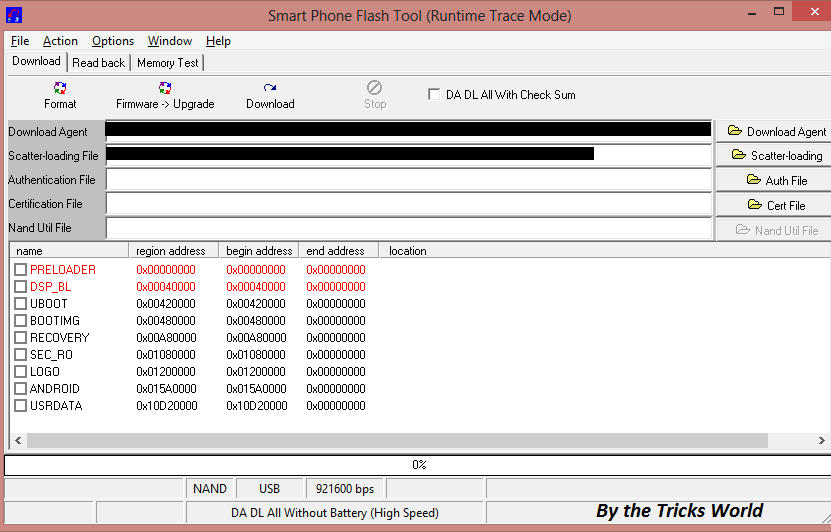
4. Download & Open Sp Flash Tool and load this MT6582_Android_scatter.txt in it & it will look like this.

5. Now click on "Recovery" in Sp flash tools and select the downloaded Carliv CWM recovery.

6. Now here comes the tricky part. After loaded the recovery click on "Download" button which you have seen in sp flash tools.

7. After clicking on download button Remove your phone's battery and then connect it to your PC.
    A green circle/download ok will confirm your flashing.

8. Insert battery and press volume up + volume down + power button simultaneously. Then press volume up button to select recovery. Hence it is a touch based recovery so you can navigate using touch otherwise by the volumes button and power button. Also you can swipe right to go forward and swipe left to go backward in Carliv recovery.

9. Tap on install from sdcard and swipe right on your screen to go forward, and select the SuperSu.zip file and say yes to flash.

10. Reboot the phone and you are Done.

Simply use the same method to root Xolo Q700S. I have not tested it yet, but believe me because of same processor and ram it can be done by this method.

If you have like my work simply like me on Google+ and my Facebook Page.


Thursday, June 5, 2014

Hack account of any Facebook, Google & of any site by Phishing.

Hello friends! Today I will post about the trick in which you can hack any one account using the method of Phishing. Anyone can use this trick no need to know about coding language or any other of it. Just you have some basic use of internet to hack the account. It is very simple i will guide to use this hack. So let us start with this trick.


ALSO READ:- DOWNLOAD YOUTUBE VIDEOS FOR FREE WITHOUT ANY SOFTWARE.  


  Here are some features of Phishing Creator tool.

  1. Fastest Phisher  maker tool ever .

  2. Useful for Users who don't know HTML, PHP coding.

  3. No manual work except entering URL of website, for which you want to make phisher.

  4. Fully automated tool.

  5. Small in size.

  6. Instant access to phisher


    =>To use this tool follow the below steps:-


    1. First of all Download Super Phisher and extract it.

    2. Open "Super Phisher" folder and then run "Super Phisher.exe" to get something like this.


    3. Now in "Url of Login Page" enter http://www.lokerz.com [This is the site you want to hack. OR Replace lokerz with your site to hack.]

    4. In "Name of Log file" write password.txt or whatever you like. This is the place where all typed id and password are stored. In "Name of PHP file" also type anything as you like. eg:- lokerz.php

    5. In field of "Site redirect to" enter, http://www.lokerz.com/MyLocker, so that victim redirect to the original site when he enters his/hers email and password.

    6. Click "Build Phisher" and you will get phisher created in "Output" folder in current directory.

    7. Upload all of the phisher files to any webhosting site:-

    Free hosting sites...

    110mb

    Freehostia

    Funpic

    Free web hosting pro 

    Awardspace 

    000webhost 

    9. Once you have uploaded the files in the directory, send this phisher link to your victim and make him login to his account using your sent phisher.

    10. Once he logs in his/hers account using phisher, all his detail like email and password are stored in file "password.txt".

    11. Now you see password in .txt file and hack the account by his password.


    For more tricks like our Facebook page.


    https://www.facebook.com/tricky2hack


Thursday, April 24, 2014

How To Recover Deleted Files From Hard Drive.

Well we got many messages from users on our Facebook  page on "How To Recover Deleted Files From Hard Drive" So, today I'm going discuss about it. When you delete any file in windows it goes to Recycle bin where you can easily restores it as it has restore option. But how you can recover your files when you delete it permanently (In windows by pressing Shift+DEL) ?. Sometimes we accidently deletes photos, videos or important document files from your computer, USB drive, SD card or anything else then how can you recover it ? Well don't worry about it there are many powerful file recovery software available on the internet which let you to recover permanently deleted files from your system. As I told you that there are a lots of  hard drive recovery services. But I searched around the internet and tested several recovery softwares so, now I'm going to tell you the top best disk/data recovery softwares.


1. Recuva

Recuva is one of the most popular and powerful file recovery tool for Windows. You will find it very easy to navigate because of it's clean interface user-friendly options. It has following features :
  • Undelete files on your computer
  • Recover deleted emails
  • Securely delete files you want to erase forever
  • Restore unsaved Word documents

Recovering files vis Recuva  is very easy you have to simply download and install the Recuva then after opening it now select what you want to restore. You can search for deleted Pictures, music, documents, videos, compressed files or emails. If you’re not sure about file name, just select ‘All Files’ option. Now select the file, either right-click on it press Recover button to recover it.

2. Panda Recovery

Panda recovery is the another best hard drive recovery service/tool for recovering files. It helps to recover deleted files from hard drive, USB, Network drives etc. It is best because of following features : 
  • Browse, Search, Preview and Recover deleted files.
  • Recover Archived, Hidden, Encrypted, Compressed files. 
  • Recover Images, Documents, Movies, or any other type of files. 
  • Recover to Local Hard Drive, Network Drive, or Flash Drive.

The process of recovering files from Panda recovery is very simply you have to just follows wizard and its instructions.

3. Test Disk

This is also the one of best hard drive recovery service providing software. It is a powerful free data recovery software which helps to recover lost partitions andor make non-booting disks bootable again when these symptoms are caused by faulty software, certain types of viruses or human error (such as accidentally deleting your partition table). TestDisk is available for lots of operating systems, including Linux, Windows, and Mac OS, and supports lots of file systems. It has following features :
  • Fix partition table, recover deleted partition.
  • Rebuild NTFS boot sector.
  • Undelete files from FAT, exFAT, NTFS and ext2 file system.
  • Recover NTFS boot sector.

You need to be careful for using this and better to use on screen instructions while using it.

4. Reclai Me 

This is another data recovering software. It is simple tom use because if it's user friendly interface more ever it can recover files under Windows (FAT16, FAT32, exFAT, NTFS, ReFS file systems), Linux (EXT2, EXT3, EXT4 and XFS file systems), Mac(HFS, HFS+ and UFS file systems). It has following features :
  • Undelete a single file or multiple files.
  • Unformat a hard drive (desktop and laptop).
  • Recover RAW file system drive.
  • Recover data in case of boot failure.

Just simply follow on screen instruction to recover data using ReclaiMe. 

5. Restoration

Last but not least, this one very simple to use. Restoration works with FAT and NTFS as well as digital cameras cards. It is also powerful tool for recovering lost/deleted data. It has following features :
  • Recover deleted files.
  • Undelete files.
  • Unformat a hard drive.
  • Photo recovery.

Just as others to use it simply follows the on screen instructions.


So, this is all about hard drive recovery service/tools. I hope this helped you a lot. If you are facing any problem just comment it below. Feel free to share Thanks !!

I hope you like the trick, if any problem just comment below or you also comment on my Facebook Page.


Wednesday, April 23, 2014

How To Install Kali Linux/Backtrack on Windows.

Today, I'm going to guide you step by step to install Kali Linux in windows using VMWare. Kali Linux is the best OS for penetration testing. Kali Linux is a Debian-derived Linux distribution designed for digital forensics and penetration testing. Kali has many advantages over the BackTrack. It comes with many more updated tools. The tools and streamlined with Debian repositories and synchronized four times a day. That means users have the latest package updates and security fixes. So now moving on to article i.e "How To Install Kali Linux/Backtrack On Windows [Step By Step Guide]"


Requirements :-

  • A minimum of 8 GB disk space for the Kali Linux install.
  • For i386 and amd64 architectures, a minimum of 512MB RAM.
  • Download Kali linux ISO. [ Link ] 
  • Download VMware [ Link]

Steps To Perform :-

Step 1: First of all install and open VMWare Workstation which you can download from the above provided link and  after opening VMWare click on Click a New Virtual Machine. It will open New Virtual Machine Wizard.

Step 2: Now in the opened wizard select I will install the operating system later and the click on Next.

Step 3: In the next opened window select Guest operating system as Linux and then select Version as Ubuntu. Click on Next to goto next screen.


Step 4: Now type virtual machine name and specify the location where you want install Kali Linux.
Step 5: Now specify the disk capacity. Default is 20 GB. Select Split virtual disk into multiple files and Click on Next.


Step 6: On next screen, either you can click on Customize Hardware to customize settings and then to go to step no. 8 or click on Finish to complete the process of creating virtual machine.
Step 7: Click on Edit virtual machine settings.

Step 8: This is the screen where you can customize or edit your Hardware Settings. As mentioned above, the minimum system requirement is uni-processor of i386 or amd64 architecture processor, so click on 

(a) Memory, to select minimum 1024 MB of RAM.
(b) Processors, as 1 or 2 (depending upon the processing speed) and Preferred mode as Automatic.
(c) Click on CD/DVD IDE. Now, on right hand panel you will Connection. It has two options : 
  • Use physical drive- select this option if you have Kali Linux is in your CD or DVD drive.
  • Use ISO image file- select this option if you have downloaded Kali Linux on your hard drive. Click on Browse to locate the ISO file. 
(d) Floppy drive is optional, as now a days most of the computers do not floppy drive.
(e) Select NAT if you have network adapter for Internet.

Now just click on OK.

Step 9:  Select kali linux on left side panel screen and then click on Play virtual machine.

Step 10: Now the VMWare setup will startup. Wait until it loads.

Step 11: Now the Kali Linux boot screen will appears. Choose either Graphical or Text-Mode install and press Enter to boot. Here I'm choosing Graphical Mode.

Step 12: After selecting your preferred language click on Continue.

Step 13: Select your location and click on Continue.

Step 14: Now select option to configure your keyboard and click on Continue.

Step 15: Once disc is detected by operating system, it will copy the image to your hard disk and probe your network interfaces.


Step 16: Now the next step is to enter the hostname to configure your network and click onContinue.

Step 17: If you have a domain name, then enter here in the box.You can enter the domain name later and leave this box blank. Click on Continue.

Step 18: Now enter any password for your root account.

Step 19: Kali will auto-detect time from your network time server.

Step 20: Now the next step is of partitioning the disk. Beginner can select Guided- use entire disk however experienced user can setup partition as Manual.

Step 21: Below are the screenshots of manual partition. I have created three partitions
  •  /boot (a partition from where your operating system will boot)
  • / (root partition for super user or admin)
  • swap (a portion where buffering is done)


Step 22: Now this is the screen where you will have last chance to review your disk configuration before the installer makes irreversible changes. After you click Continue, the installer will go to work. You are almost done.


Step 23: Configure network mirror to give additional software that is included on the CD-ROM and leave HTTP Proxy.


Step 24: Now just install the GRUB boot loader.


Step 25: Finally, click on Finish to reboot Kali Linux installation.

Step 26:  You are done ! Now the Login screen of Kali Linux will appears on the screen and login using your password which you made earlier.


So, this is "How To Install Kali Linux/Backtrack On Windows". I hope this helped you a lot. If you are facing any problem just comment it below. Fell free to share. More You Share, More We Will Share For You. Thanks !!


I hope you like the method to install it. Please like my Facebook Page.


Copyright © & Protected by